✓ Schweizer Online-Shop
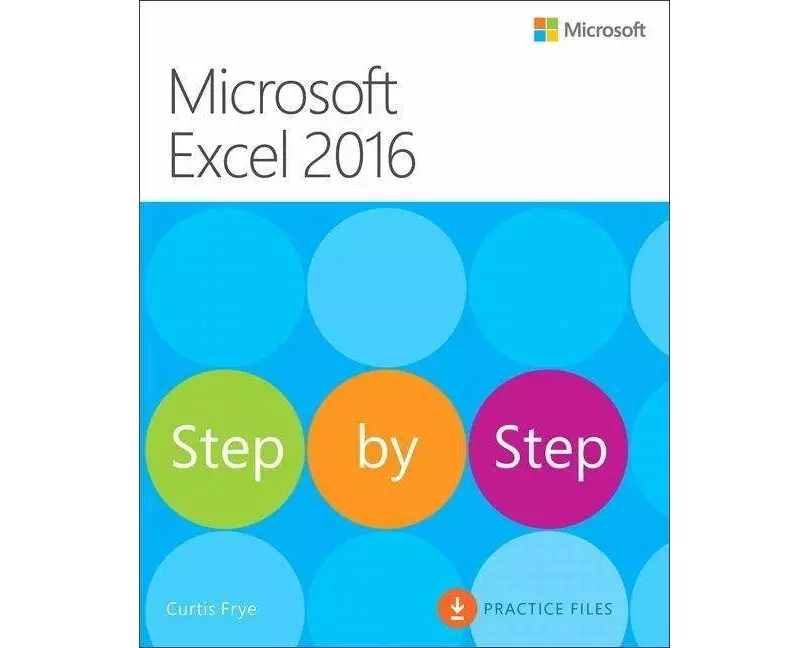
Microsoft Excel 2016 Step by Step
Erhältlich:Nicht auf LagerBuch (Softcover): Fachbuch

Microsoft Excel 2016 Step by Step

von Curtis Frye

Verlag
Pearson
Unsere Artikel-Nr.
YV6Y3EL

Beschreibung

This is learning made easy. Students will get productive fast with Excel 2016 and jump in wherever they need answers-brisk lessons and colorful screen shots show them exactly what to do, step by step.

Spezifikationen

SpracheEnglisch
AutorCurtis Frye
ThemaPC/Internet: Unternehmensanwendungen
Erscheinungsjahr2015
FormatBuch (Softcover)
Anzahl Seiten544

Inhaltsverzeichnis

"Introduction   xiii <\/b>Who this book is for   xiii The Step by Step approach   xiii Download the practice files   xiv Sidebar: Adapt exercise steps   xviii Ebook edition   xx Get support and give feedback   xx Errata and support   xx We want to hear from you   xx Stay in touch   xx Part 1: Create and format workbooks Chapter 1: Set up a workbook   3 <\/b>Explore the editions of Excel 2016   4 Excel 2016   4 Excel Online   4 Excel Mobile Apps   5 Become familiar with new features in Excel 2016   6Create workbooks   7 Modify workbooks   13 Modify worksheets   18 Merge and unmerge cells   23 Customize the Excel 2016 app window   26 Zoom in on a worksheet   26 Arrange multiple workbook windows   28 Add buttons to the Quick Access Toolbar   30 Customize the ribbon   33 Skills review   39 Practice tasks   40 Chapter 2: Work with data and Excel tables   43 <\/b>Enter and revise data   44 Manage data by using Flash Fill   48 Move data within a workbook   51 Find and replace data   56 Correct and expand upon data   60 Define Excel tables   65 Skills review   69 Practice tasks   70 Chapter 3: Perform calculations on data   73 <\/b>Name groups of data   74 Create formulas to calculate values   77 Sidebar: Operators and Precedence   88 Summarize data that meets specific conditions   90 Set iterative calculation options and enable or disable automatic calculation   96 Use array formulas   98 Find and correct errors in calculations   100 Skills review   106 Practice tasks   107Chapter 4: Change workbook appearance   111<\/b>Format cells   112Define styles   118Apply workbook themes and Excel table styles   121Make numbers easier to read   127Change the appearance of data based on its value   130Add images to worksheets   138Skills review   142Practice tasks   143Part 2: Analyze and present dataChapter 5: Manage worksheet data   147<\/b>Limit data that appears on your screen   148Manipulate worksheet data   153Sidebar: Select list rows at random   154Summarize data in worksheets that have hidden and filtered rows   155Find unique values within a data set   161Define valid sets of values for ranges of cells   163Skills review   165Practice tasks   166Chapter 6: Reorder and summarize data   169<\/b>Sort worksheet data   170Sort data by using custom lists   176Organize data into levels   179Look up information in a worksheet   184Skills review   187Practice tasks   188Chapter 7: Combine data from multiple sources   191 <\/b>Use workbooks as templates for other workbooks   192 Link to data in other worksheets and workbooks   197 Consolidate multiple sets of data into a single workbook   202 Skills review   205 Practice tasks   206 Chapter 8: Analyze alternative data sets   209<\/b> Examine data by using the Quick Analysis Lens   210 Define an alternative data set   212 Define multiple alternative data sets   216 Analyze data by using data tables   218 Vary your data to get a specific result by using Goal Seek   221 Find optimal solutions by using Solver   223 Analyze data by using descriptive statistics   229 Skills review   231 Practice tasks   232 Chapter 9: Create charts and graphics   237 <\/b>Create charts   238 Create new types of charts   248 Customize chart appearance   252 Find trends in your data   260 Create dual-axis charts   263 Summarize your data by using sparklines   264 Create diagrams by using SmartArt   266 Create shapes and mathematical equations   271 Skills review   277 Practice tasks   278Chapter 10: Create dynamic worksheets by using PivotTables   281 <\/b>Analyze data dynamically by using PivotTables   282 Filter, show, and hide PivotTable data   290 Edit PivotTables   301 Format PivotTables   305 Create PivotTables from external data   309 Create dynamic charts by using PivotCharts   313 Skills review   316 Practice tasks   317 Part 3: Collaborate and share in Excel Chapter 11: Print worksheets and charts   323 <\/b>Add headers and footers to printed pages   324 Prepare worksheets for printing   330 Fit your worksheet contents to the printed page   331 Change page breaks in a worksheet   334 Change the page printing order for worksheets   335 Print worksheets   337 Print parts of worksheets   339 Print charts   343 Skills review   345 Practice tasks   346 Chapter 12: Automate repetitive tasks by using macros   349 <\/b>Enable and examine macros   350 Set macro security levels in Excel 2016   350 Examine macros   353 Create and modify macros   356Run macros when you click a button   357 Run a macro when you open a workbook   361 Insert form controls into a worksheet   362 Skills review   369 Practice tasks   370 Chapter 13: Work with other Microsoft Office apps   373 <\/b>Include Office documents in workbooks and other files   374 Link Office documents to Excel workbooks   375 Embed files in Excel and other Office apps   377 Create hyperlinks   379 Paste charts into documents   384 Skills review   385 Practice tasks   386 Chapter 14: Collaborate with colleagues   389 <\/b>Share workbooks   390 Save workbooks for electronic distribution   394 Manage comments   395 Track and manage colleagues’ changes   398 Add protection to workbooks and worksheets   401 Finalize workbooks   408 Authenticate workbooks   410 Save workbooks for the web   412 Import and export XML data   414 Work with OneDrive and Excel Online   418 Skills review   424 Practice tasks   425Part 4: Perform advanced analysis Chapter 15: Perform business intelligence analysis   431 <\/b>Enable the Data Analysis add-ins   432 Define relationships between tables   434 Analyze data by using Power Pivot   438 View data by using timelines   442 Bring in external data by using Power Query   446 Skills review   451 Practice tasks   452 Chapter 16: Create forecasts and visualizations   455 <\/b>Create Forecast Worksheets   456 Define and manage measures   461 Define and display Key Performance Indicators   464 Create 3D maps   468 Skills review   475 Practice tasks   476 Keyboard shortcuts   479 Glossary   89 Index   95 About the author   521<\/b>"

Bewertungen

Produkt bewerten

Für dieses Produkt liegt noch keine Bewertung vor. Wenn Sie es gekauft haben, teilen Sie gerne Ihre Erfahrung.

Zahlungsarten

payment-einzahlungsscheinpayment-twintpayment-mastercardpayment-visapost-finance-paypayment-apple-paypayment-google-paysamsung-pay

Rechnung (Einzahlungsschein mit QR-Code), Twint, Kreditkarte, PostFinance, Apple, Google oder Samsung Pay.

Versand

Kostenlos: Schweiz & Liechtenstein

Rückgabe

30 Tage Rückgaberecht

Sie können das Produkt innerhalb von 30 Wochentagen ohne Angabe von Gründen zurücksenden, sofern es unbeschädigt und in der Originalverpackung ist.

Weitere Hinweise finden Sie in unseren AGB unter D.1.